Share this article
Donation Widgets for Live Streams | OBS & Streamlabs
4fund.com
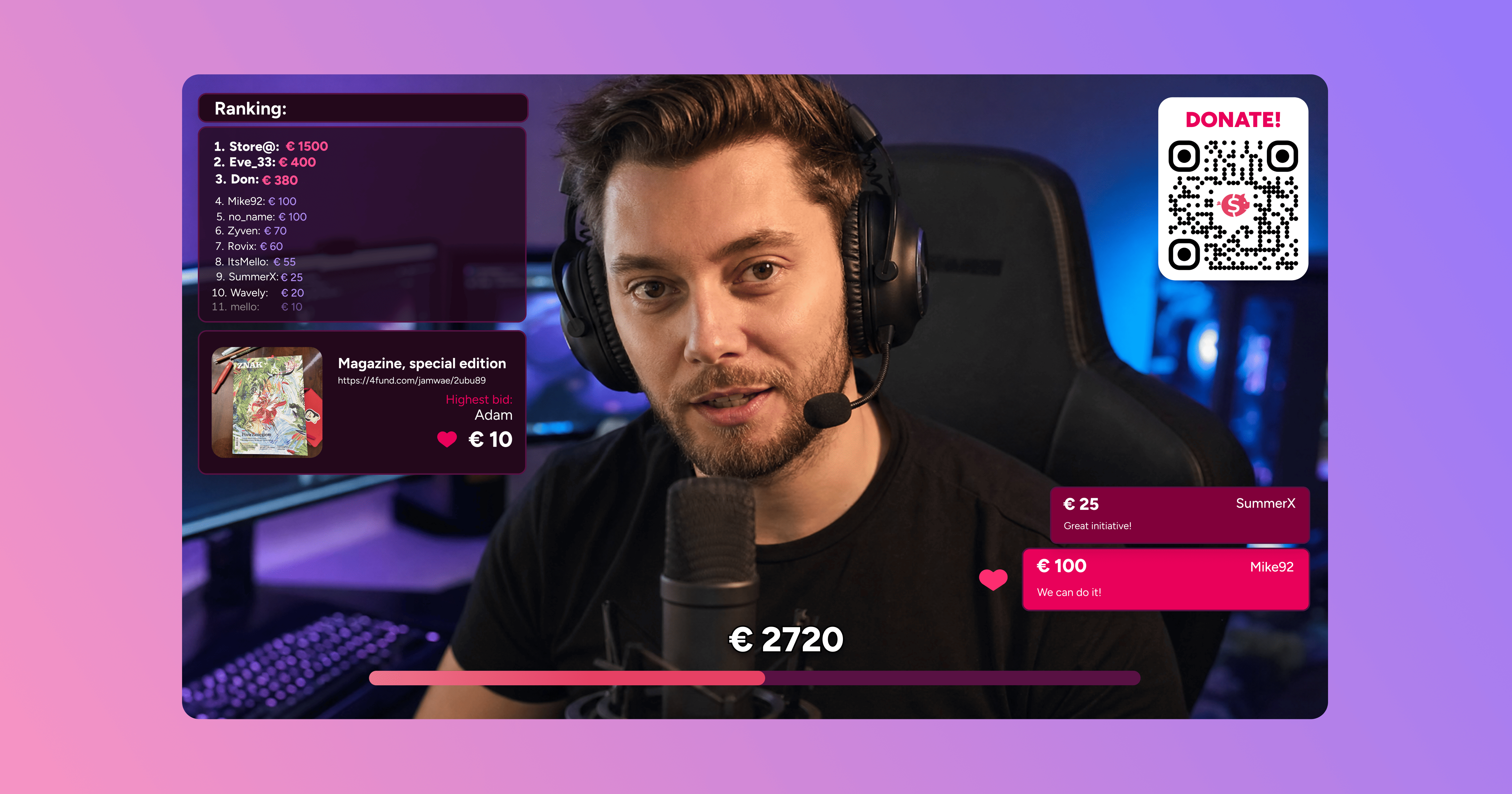
Do you want to show your viewers how much money you have raised during a charity live stream? Would you like to display recent donations, a donor leaderboard or a QR code that links to your fundraiser? With 4fund streaming widgets, you can show this information directly on your live stream. Learn how to add fundraising overlays and display donation updates in real time.
Key takeaways
- 4fund streaming widgets let you display fundraising information directly on your live stream.
- You can show the total amount raised, a fundraising progress bar, recent donations and a donor leaderboard.
- A donation QR code helps viewers open your fundraiser and make a donation.
- To display a widget, generate its URL on 4fund and add it as a browser source in your streaming software.
- Donation widgets work with OBS Studio, Streamlabs Desktop and other streaming software that supports browser sources.
- You can use these widgets for charity live streams, gaming streams and other live fundraising events.
What are streaming donation widgets and how do they work?
Streaming donation widgets are overlays that display information about your fundraiser during a live broadcast. They help viewers follow your fundraising progress, make donations and see how other people are supporting your cause.
4fund offers several types of streaming widgets. You can choose the ones that best suit your live stream. Some make it easier for viewers to donate, while others display fundraising progress or recognise donors.
Here are the available widgets:
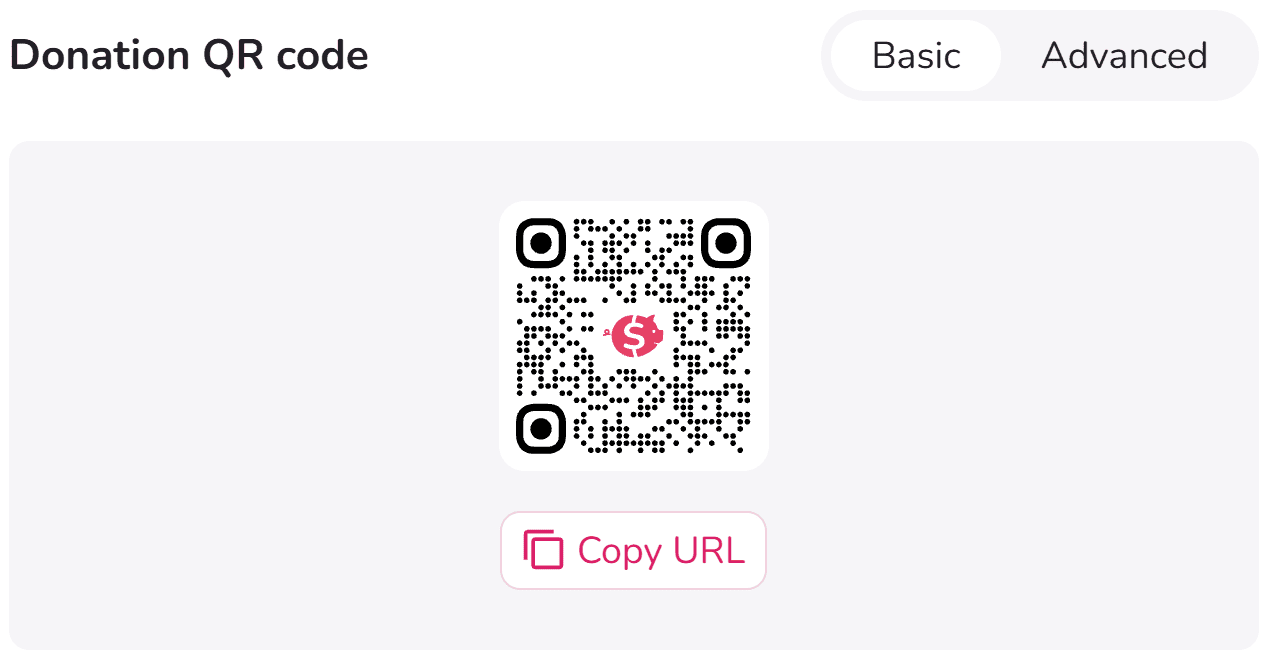
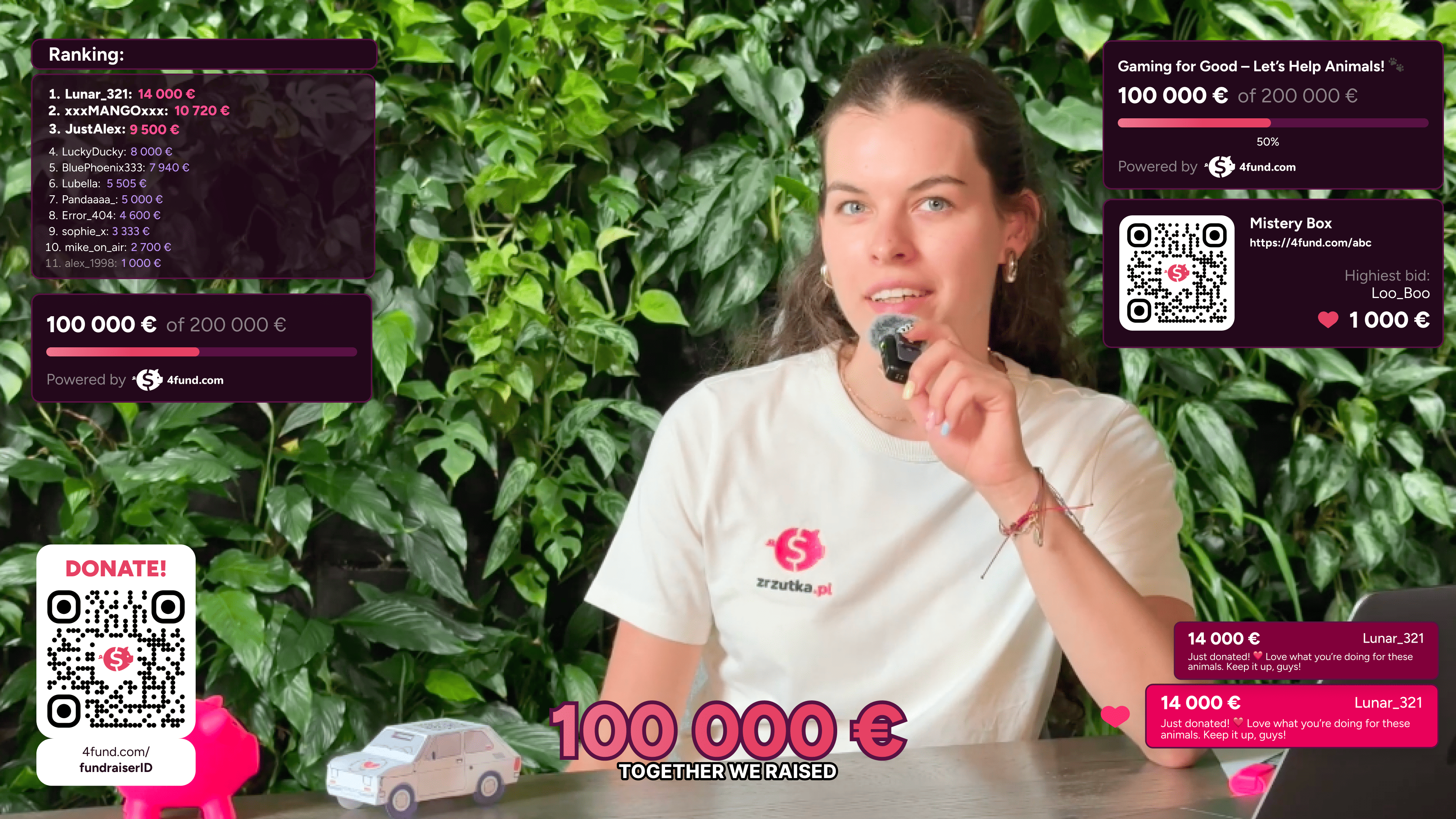
- Donation QR code - Displays a QR code that viewers can scan to open your fundraiser and make a donation.
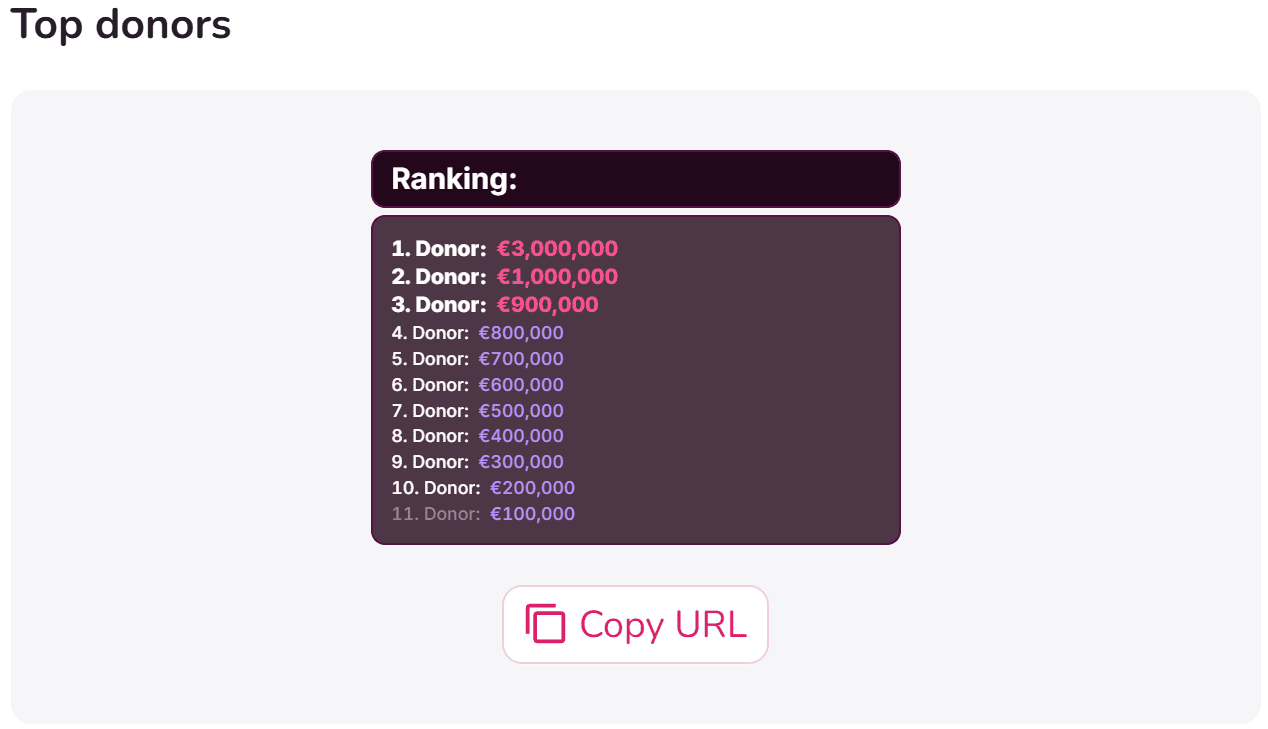
- Donor leaderboard - Displays the 11 donors who have contributed the highest total amounts to your fundraiser.
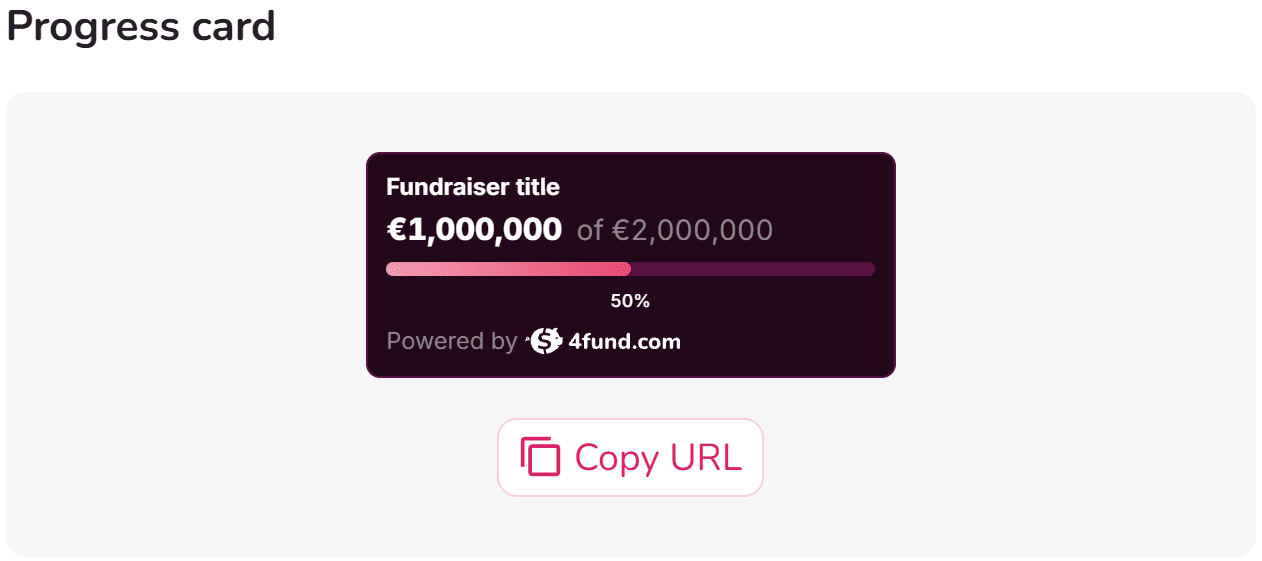
- Fundraising progress card - Displays your fundraiser title, the amount raised, your fundraising goal and a progress bar.
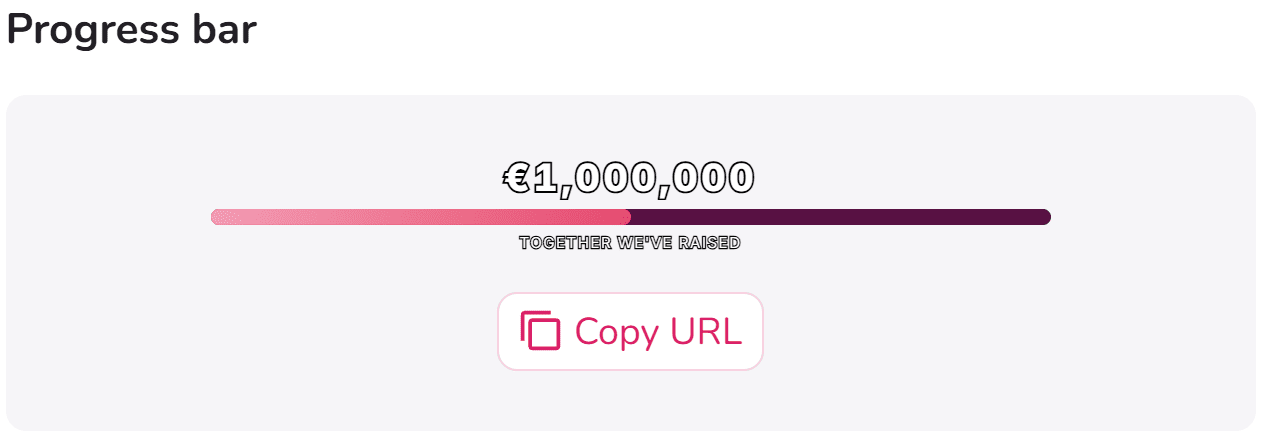
- Fundraising progress bar - Shows the current amount raised and a progress bar.
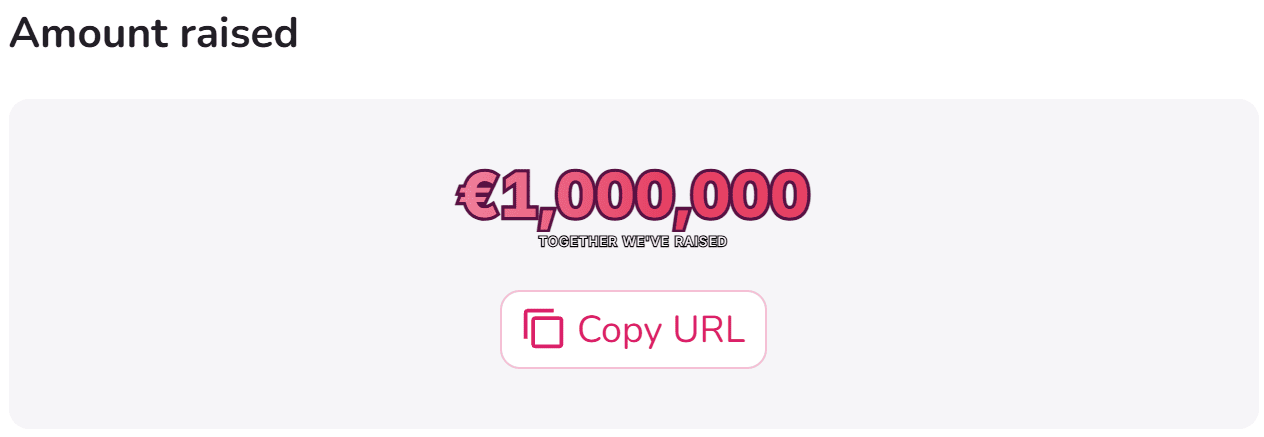
- Total amount raised - Displays the current amount collected through your fundraiser.
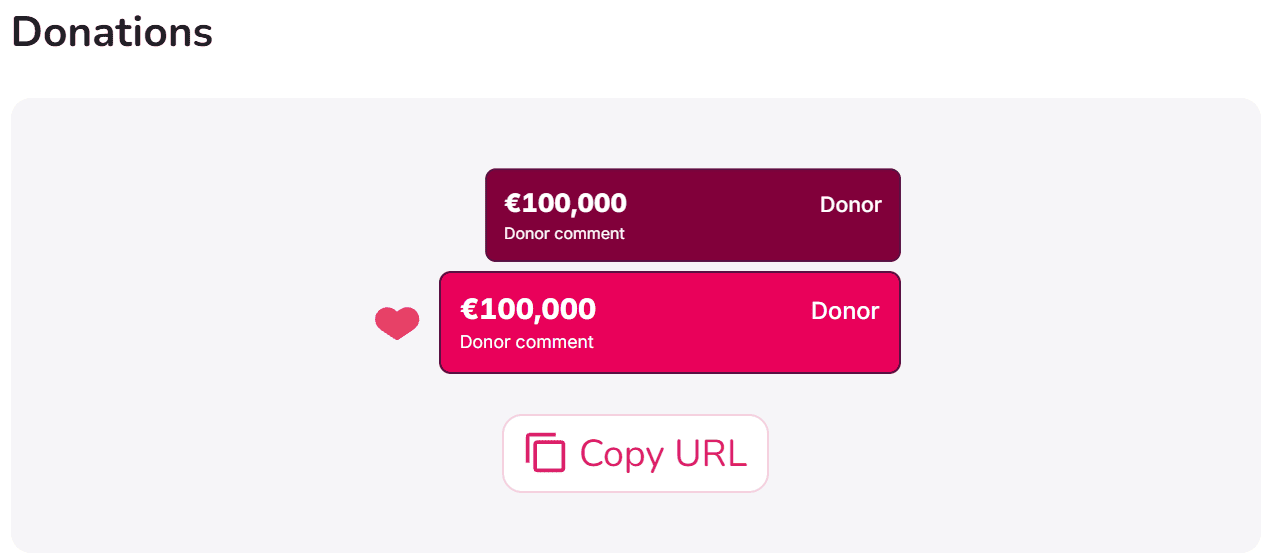
- Live donation alerts - Displays new donations as pop-up notifications during your stream.
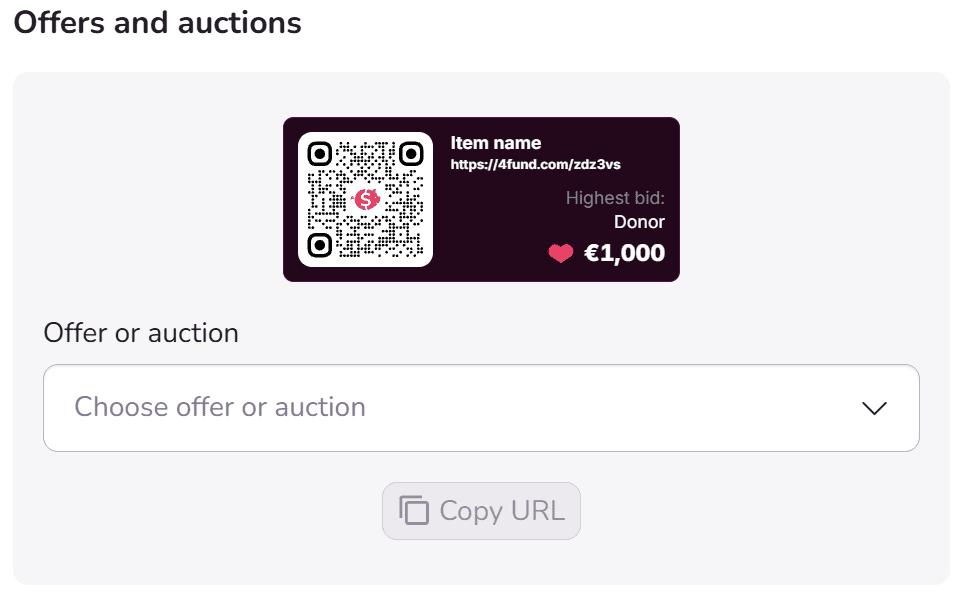
- Offers and auctions - Displays a selected offer or auction from your fundraiser.
How to create a donation widget on 4fund
Want to add live donation updates to your stream? Follow these steps to generate a streaming widget for your fundraiser.
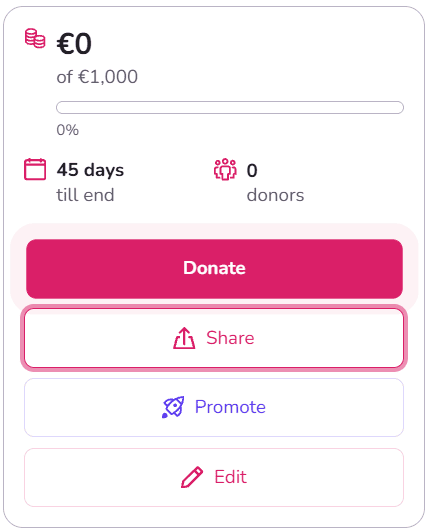
1. Open your fundraiser on 4fund and click "Share".
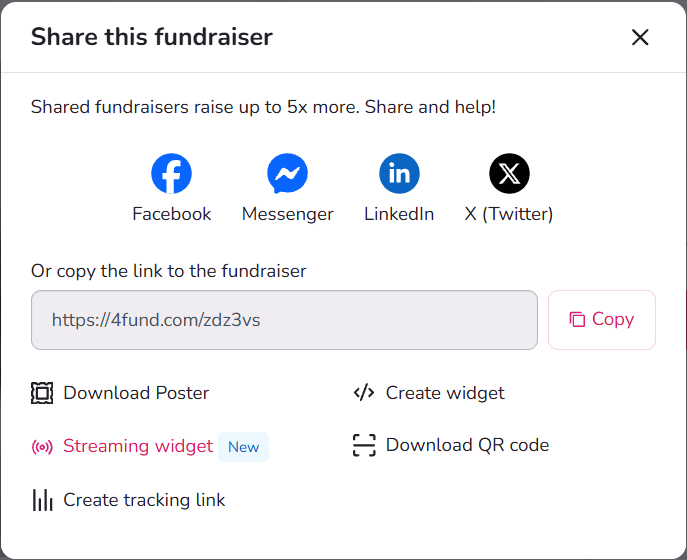
2. Select "Streaming live" and choose the widget you want to display.
3. Copy the URL of your selected widget.
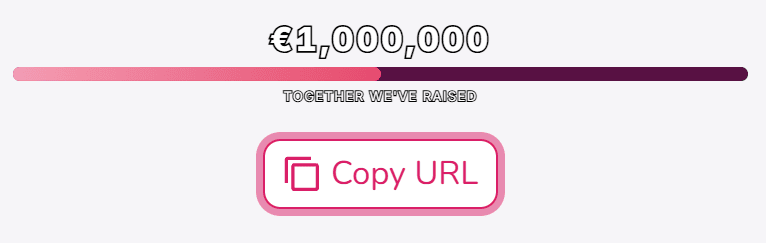
Your donation widget is now ready to be added to your streaming software.
How to add donation widgets to OBS Studio and Streamlabs
4fund donation widgets work as live stream overlays. You can add them to your streaming software using the generated URL.
Most streaming programs support this through a feature called Browser Source. This lets you display content from a web address directly on your stream.
Below, we explain how to set up donation widgets in two popular streaming programs: OBS Studio and Streamlabs Desktop.
How to add a donation widget to OBS Studio
- Copy the URL of your selected donation widget from 4fund.
- Open OBS Studio and find the "Sources" panel.
- Click the "+" button at the bottom of the panel.
- Select "Browser", enter a name for your source and click "OK".
- Paste the widget link into the "URL" field.
- Set the width and height of the widget, then click "OK".
- Adjust the size and position of the widget on your stream.
How to add a donation widget to Streamlabs Desktop
- Copy the URL of your selected donation widget from 4fund.
- Open Streamlabs Desktop and find the "Sources" panel.
- Click the "+" button and select "Browser Source".
- Click "Add Source", enter a name for your source and select "Add Source" again.
- Paste the widget link into the "URL" field.
- Set the width and height of the widget, then close the settings window.
- Adjust the size and position of the widget on your stream.
Your donation widget is now ready to appear during your live stream!
You can add more widgets in the same way, including a fundraising progress bar, a donor leaderboard or live donation alerts.
You can also use several widgets at once to create your own fundraising overlay layout. For example, you can combine a progress bar, donor leaderboard and donation alerts on one screen.
Charity live stream checklist: what to do before going live
Before starting your charity live stream, make sure your donation widgets work correctly and viewers can easily find and support your fundraiser.
Check the following:
- Test your donation widgets. Use the preview in your streaming software to check that each widget displays correctly.
- Check your stream layout. Make sure the widgets do not cover important content on the screen.
- Prepare a short explanation of your cause. Tell viewers who you are raising money for and how their donations will help.
- Make donating easy. Display a donation QR code or add your fundraiser link to the stream description.
Need more ideas to engage your viewers? Read our guide to charity live streaming and discover how to encourage your community to support a good cause.
Planning a charity live stream? Create a fundraiser on 4fund and invite your viewers to support it!
Create a fundraiser for your stream
FAQ – Streaming donation widgets
Can I add multiple donation widgets to one live stream?
Yes. In OBS Studio and Streamlabs Desktop, you can add several widgets as separate browser sources. For example, you can display a fundraising progress bar, a donor leaderboard and a donation QR code during the same live stream. You can position each widget in a different part of the screen.
Do 4fund donation widgets only work with OBS Studio?
No. You can also use donation widgets with other streaming programs that support browser sources, including Streamlabs Desktop. The setup process may vary depending on the software.
How can I show live donation alerts on my stream?
Open your fundraiser on 4fund, click "Share" and select "Streaming live". Choose the donation alerts widget and copy its URL. Add the URL as a browser source in OBS Studio or Streamlabs Desktop. New donations will appear as pop-up notifications during your stream.
How can viewers donate during a charity live stream?
Viewers can open your fundraiser using a link in the stream description or by scanning a donation QR code displayed on the screen. They can then make a donation through your fundraiser page on 4fund.
What should I do if my donation widget is not showing?
First, check that you have copied the correct widget URL into your browser source. Make sure the source is visible in your selected scene and that its width and height are set correctly. If the widget still does not appear, try refreshing the browser source or adding the widget again.
Discover more practical tips and inspiring stories.